
.png)
Integration with “Vchasno.Kasa”
Connect the “Vchasno.Kasa” software cash register to Gincore to automatically fiscalize sales without buying a physical cash register (RRO). This integration allows you to issue receipts, make official cash deposits/withdrawals, and close shifts directly from the system interface. All electronic receipts are automatically registered with the tax authority (State Tax Service of Ukraine) and can be sent to the customer via SMS or Email. Follow the step-by-step instructions below to set up the connection.
Stage 1. Configuration on the “Вчасно.Каса” Side
Step 1. Company registration and cash register creation
Log in to your “Вчасно.Каса” personal account, register your company, and create a cash register.
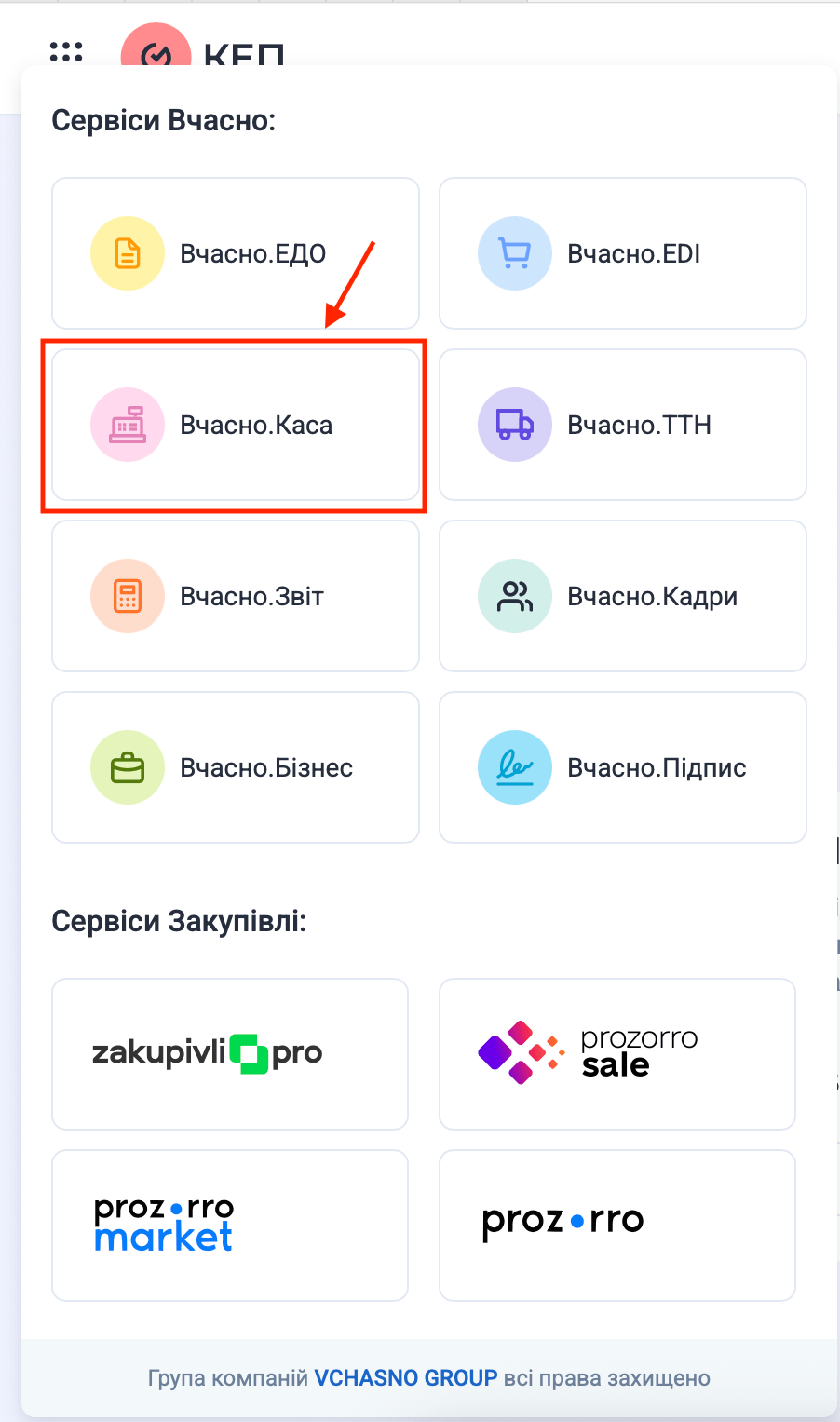
In your personal account, open the “Усі сервіси” menu (the square icon with dots in the top-left corner of the screen). From the list of available services, select “Вчасно.Каса”.
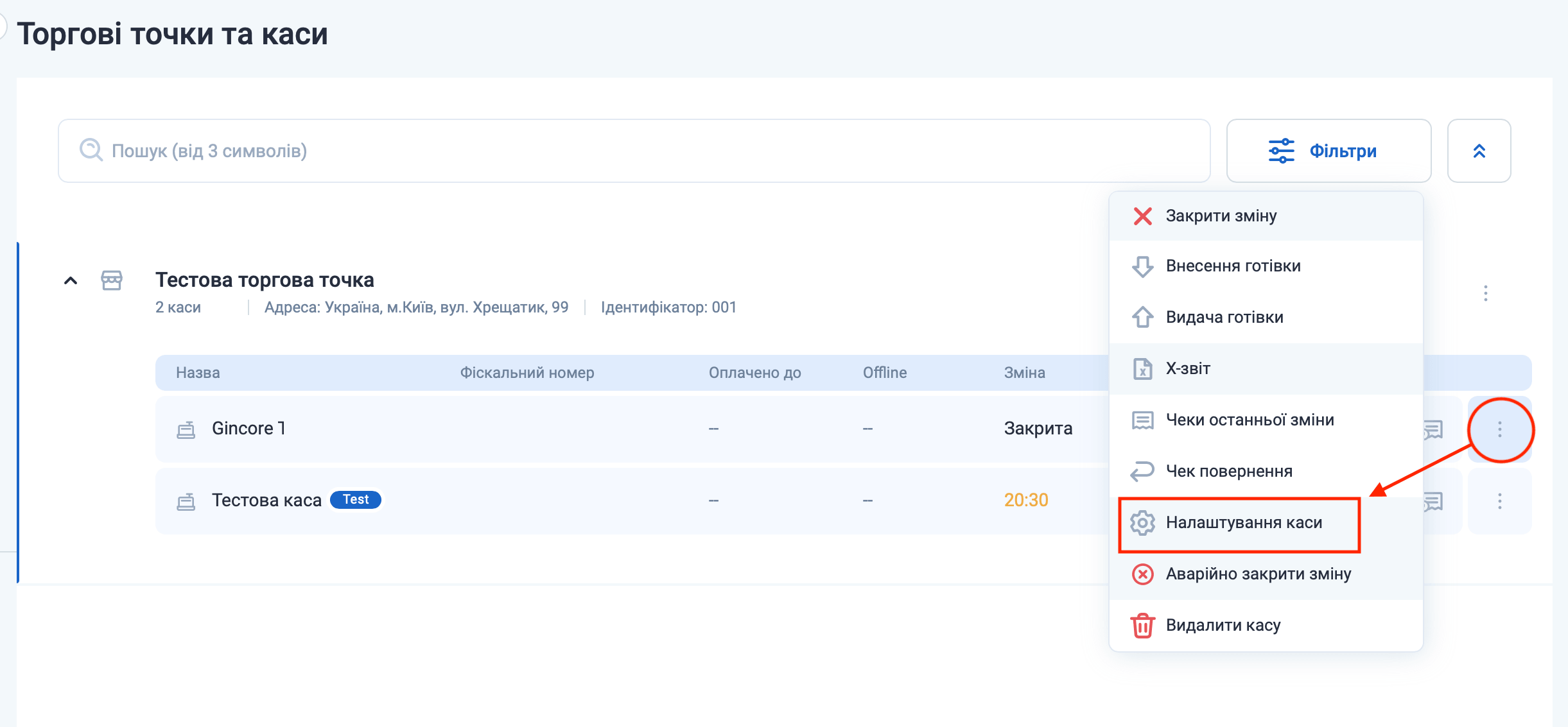
In the row of the created cash register, click the three-dot icon on the right and select “Налаштування каси”.
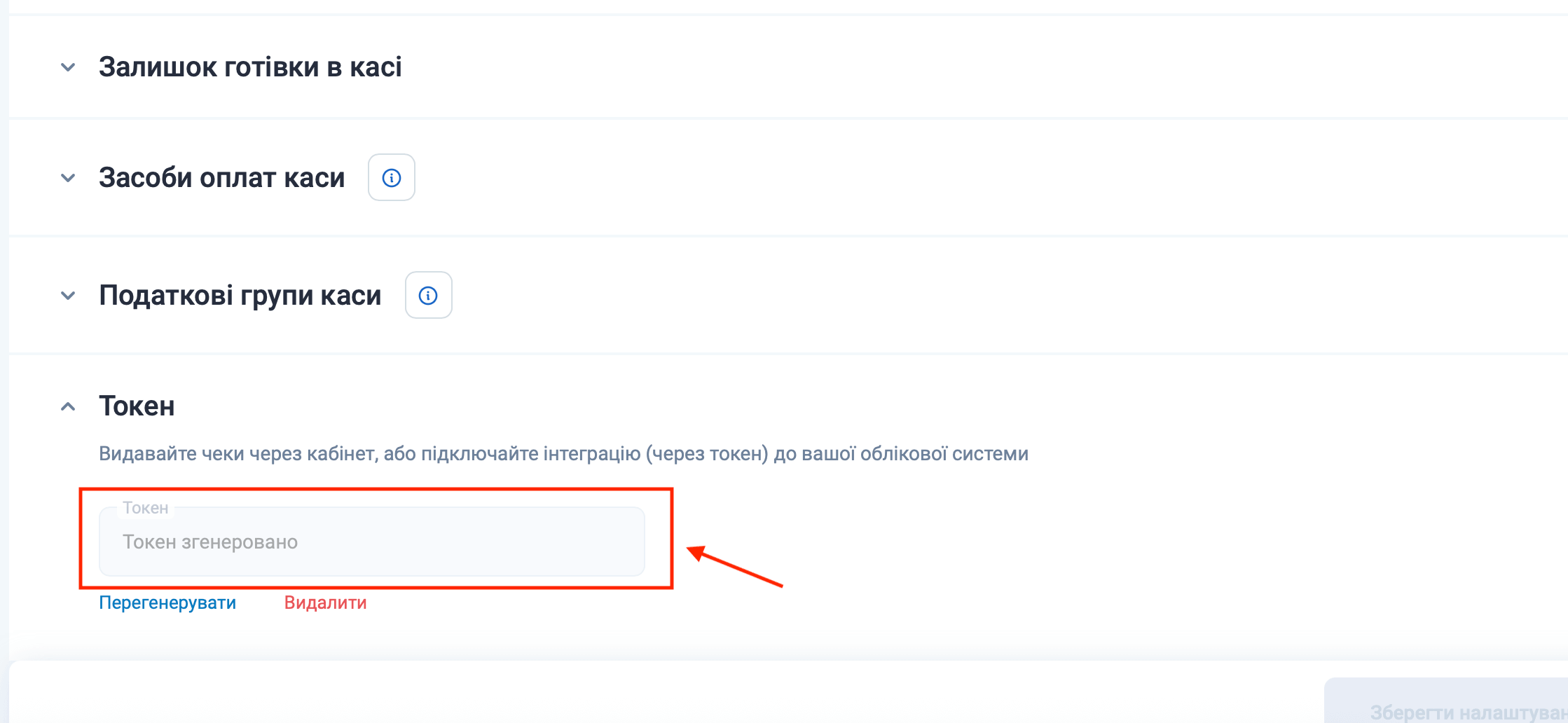
In the opened cash register settings menu, go to the “Токен” section and copy the generated token — you will need it to integrate the cash register with the Gincore software.
Stage 2. Configuration on the Gincore Side
In the Gincore program, open the main menu: “Більше” → “Налаштування” and select “Підключення фіскального реєстратора (РРО)”.
In the “Підключення фіскального реєстратора (РРО)” section, click the “Підключити” button.
In the opened cash register connection card, fill in the following details:
- In the “Реєстратор” field, select Vchasno.
- In the “Назва каси” field, enter a convenient name that will be displayed in Gincore.
- In the “Токен каси” field, paste the token you copied in Step 4.
- Click the “Підключити” button to complete the setup.

Total
security
The data is transmitted in encrypted form and stored on servers with backup

Cloud access
24/7
Managing your business remotely from any part of the world 24 hours a day. 
Customer
support
Complimentary demonstration training on utilizing the accounting software.
Swift assistance via the built-in chat feature

Release
tracking
We are constantly improving Gincore. Track our latest major and minor releases
Start your free trial right now